Using Octopus
Desktop client
The desktop client is optional. The Octopus runtime does not depend on this app. You can run it without a GUI or write a different client over the same interfaces, descriptors, and recorded evidence. The screens below are one presentation of that architecture, not required runtime components.
The terminal client provides chat, tasks, results, and operator responses against the same Home without opening this app.
The Octopus desktop client currently supports macOS 14 and later. Its interaction design is inspired by the ChatGPT desktop app: a conversation, voice controls, a sidebar, and work opened beside the conversation. It is an Octopus client over Octopus runs, interfaces, and policy. Signing in with ChatGPT connects a model provider; it does not make ChatGPT the runtime.
Start with Getting started to build and set up the app. The client is a research preview; a capability appearing in a catalog does not mean it is installed, configured, or available to the current task. Screenshots show a development installation, including its incomplete setups.
Where to go
| Destination | Use it for |
|---|---|
| Home | The ongoing conversation with Octopus: text, voice calls, current activity, and widgets. |
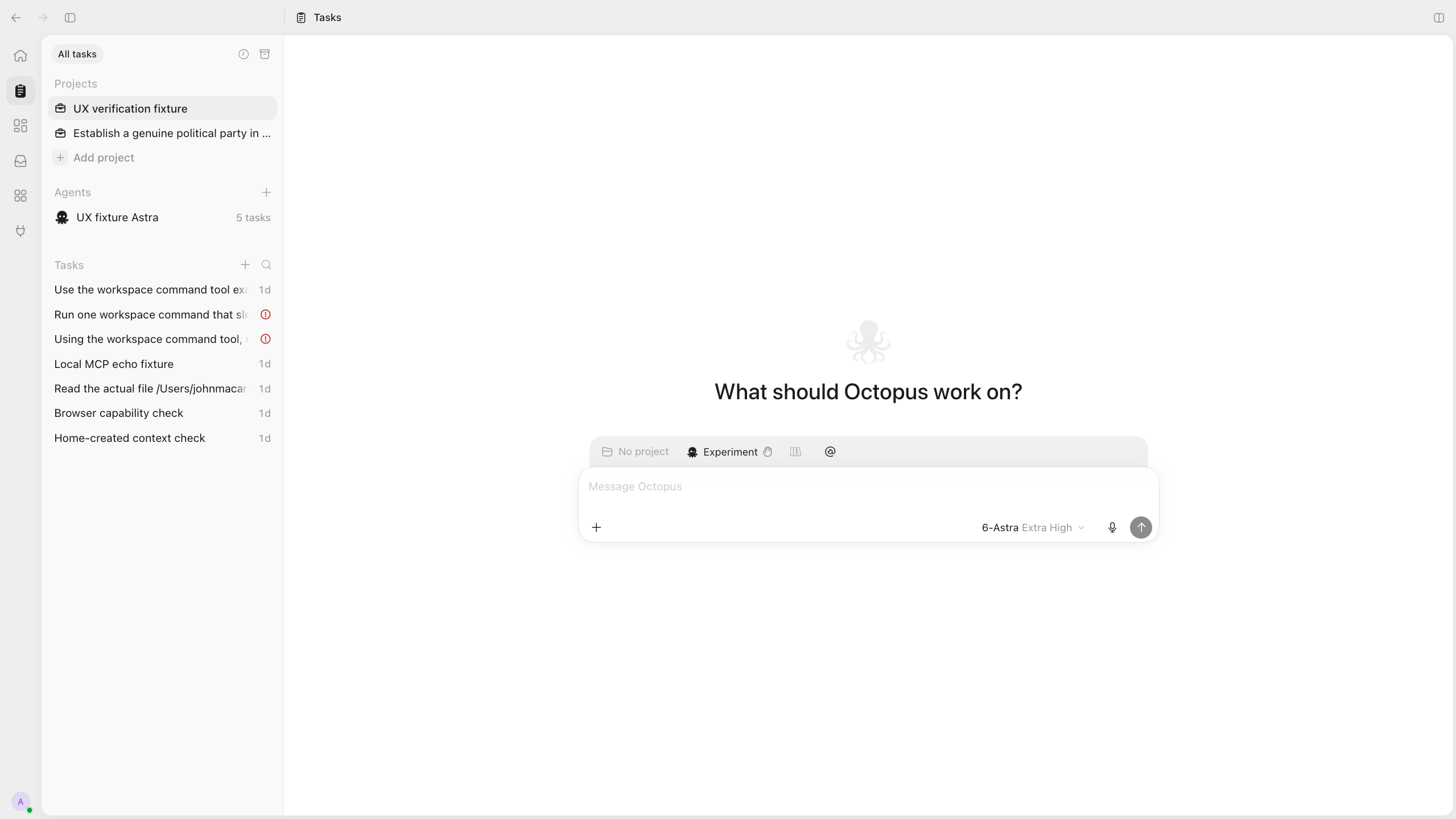
| Tasks | Work grouped into Projects, reusable Agents, individual tasks, triggers, and archived tasks. |
| Dashboard | Inspect Topology, Registry, Worker Environments, and Movements. These views explain what is running and what crossed an interface. |
| Inbox | Review activity and requests that need attention, then open the associated work. |
| Applications | Install and configure providers, connectors, plugins, and context packages; choose where they are available. |
| Drivers | Install and configure the environments in which tools act: files, worktrees, browsers, desktops, containers, and remote execution. |
The avatar menu offers Settings and Lock Octopus. For a connected ChatGPT account, Usage shows remaining limits and reset times when available. When the account belongs to more than one workspace, the avatar menu lists them with the current one checked; choosing another switches the workspace Octopus uses for new requests, and the model list reloads. Settings → Account shows the account, plan and workspace, lists the workspaces with Switch, and offers Add account and Log out. Adding an account signs in another ChatGPT account in the browser and replaces the current sign-in; a workspace that requires SSO opens browser sign-in, and cancelling it keeps the current one. Switching requires an unlocked session; if the workspace list cannot be loaded, the menu says so and tries again the next time it opens. The sign-in is shared with Codex on this computer (see Codex CLI). Lock Octopus locks local access and returns to the password screen. The model provider stays signed in. Unlock with your password, or Touch ID if you enabled it. Surfaces controls additional views; the primary navigation destinations stay available. Workspace views support split panes, so a conversation and its evidence can remain visible together. Each conversation retains its right-pane tabs, selected tab, open state and pane layout when you leave it and return. This presentation state is local to the selected Home, access profile and client window.
Home: conversation, Activity, and voice
Home presents one continuing run. Use the composer for text and attachments. Each message you send from Home also carries the client’s snapshot of what you can see - tasks with their status and last reply, triggers, projects and Agents - inside the same message artifact, so Home can answer and propose work concretely. It is not shown in the conversation. Open Activity for the conversation and the detailed trace of its work. Widgets can show task progress, upcoming work, or other configured sources; their visibility and positions are client presentation choices. Home also uses compact widgets for pictures, small tables and short visual answers. Larger results can use several widgets. For longer text, Home can save a text or Markdown document and open it in the right Files pane.
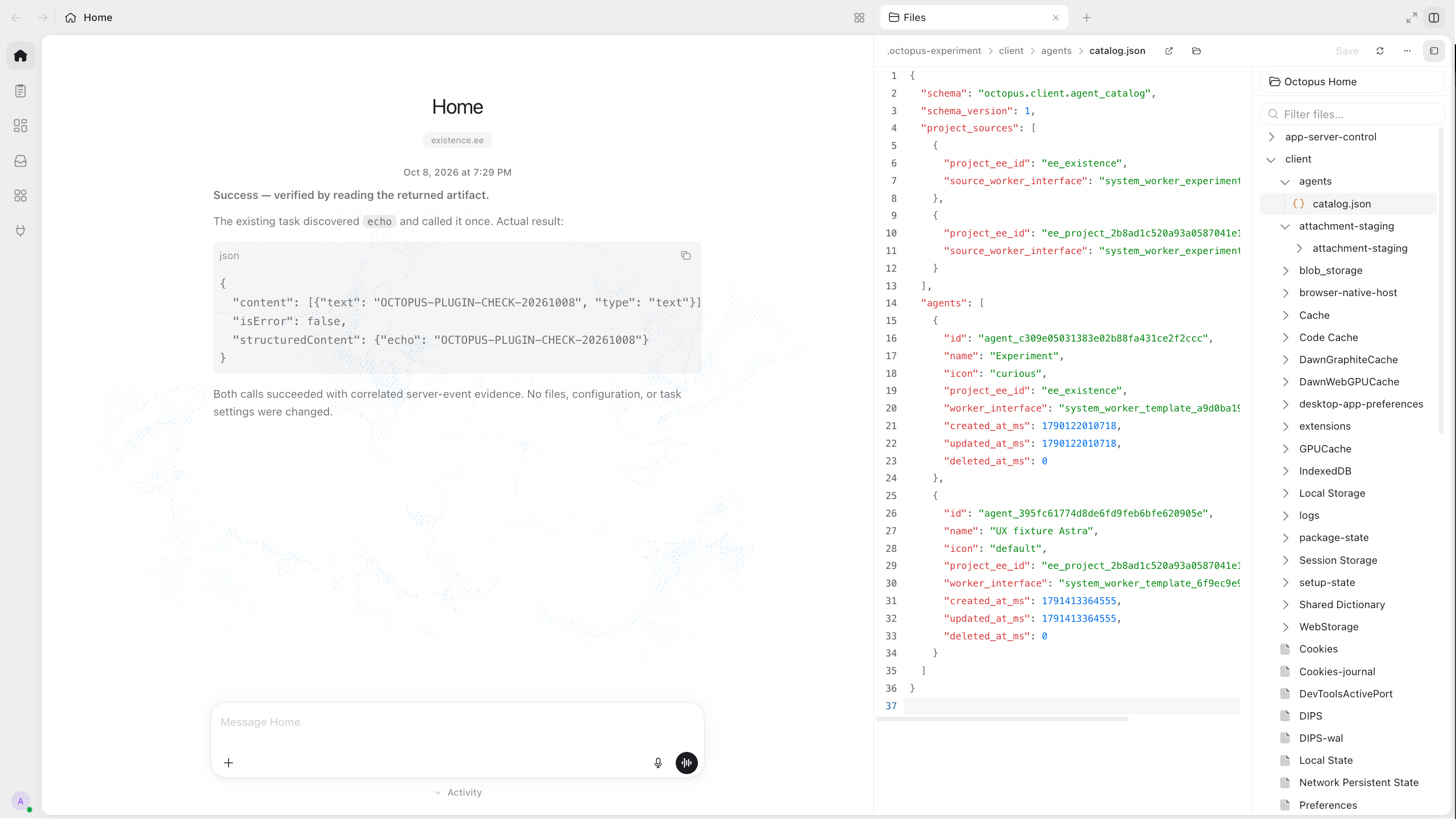
Here, Files is an operator view of local configuration. Opening a file beside Home does not automatically give the run access to it; model access still requires the appropriate bindings and granted tools.
There are two distinct audio features:
- Dictation streams recognized speech into the active message field. A compact waveform appears inside the Stop button while the normal composer controls remain in place. Intermediate words are a preview; they are committed to the draft only when finalized. Stop dictation keeps the final text in the message field; Send finalizes it and sends the current draft. Escape removes the speech preview and preserves text you typed yourself. Each recording supports up to ten minutes. The last 20 recordings, including cancelled captures and failed transcriptions, are saved on this device by default. Settings → Voice → Dictation → Recent recordings shows transcript and time, with Copy and a menu for Download recording and Delete recording. Audio without text offers Retry. View recording after a failure opens that exact recording in these settings, with Download audio and Show all recordings. Retry in the composer can reuse retained audio while that composer remains open. Escape cancels capture or a pending transcription without submitting a message. A failed stream offers explicit retry of the saved audio; it never silently switches to another recognition path.
- A voice call connects the Home run through its declared voice interface. The controls include microphone mute, speaker output, device selection, transcript, and ending the call. Calls require a configured voice provider and microphone permission; text-provider sign-in alone is not enough.
Settings → Voice contains device choices, dictation settings and dictionary, and the floating call controls used outside Home. A selectable synthesized voice is offered only when the speech interface declares one.
Settings → Appearance → Octopuses, off by default, adds octopuses drawn as ASCII glyph tiles that never stop swimming; the Home wave field stays behind them, quieter. Each one picks its next destination in open water, away from the others and so that together they stay spread across the screen, and steers around the visible text, response, and composer instead of crossing them. On Home, three monochrome octopuses swim at different depths, harder while Octopus is thinking, rippling while it speaks. On the new-task screen, each recent task gets one octopus in its agent’s colour, brisk while its agent works and slower while it waits or is idle. Clicking empty space sends a short wave of digits that crumbles as it spreads and passes through the octopuses without moving them.
When a voice call starts, the Home octopuses jet away from the orb toward the nearest edge and dissolve, while the waves gather into the call orb exactly as they do without octopuses. When the call ends and the orb returns to the waves, the octopuses swim back in from open edges one after another.
Audio exchanged through runtime interfaces remains part of the artifact contract: microphone or speech interfaces produce audio or transcript artifacts; receiving interfaces decide how to play or interpret them. An audio artifact can reference binary media without turning its contents into JSON. The kernel does not decode audio.
Tasks: Project → Agent → task
Project settings include Source folders. Add several folders, remove a folder,
or use Make primary to choose the working directory. Tasks created afterward
use that Primary folder and can work in the other selected folders within their
configured access. Full access, the default, keeps those folders as working
context and gives the task the whole machine: its commands run without the
operating-system sandbox, so browsers, Electron apps and ps work.
Project access limits the task to its folders inside that sandbox.
Filesystem tools require a working folder from the selected project, Agent or host configuration. When none is configured, the composer explains the missing folder before submission; changing access settings remains available.
The bundled providers default to a 400,000-token context window. Claude Code and Anthropic default to 700,000 tokens. Grok CLI defaults to 500,000 tokens. Models with a smaller declared capacity keep that limit. The context indicator uses the provider’s reported usable capacity, which can reserve space within that window.
If a manual message cannot be sent, its text returns to the composer and the usual error notification explains the failure. Delivery with a lost confirmation is checked against task history; retrying explicitly uses the same message identity. A newer draft is preserved while the failed message remains available.
A Project supplies the goal and permission boundary. An Agent is a reusable worker template in that project: its pin, capability ceiling, and defaults for authoring a task. Creating an Agent does not start work. A task is a run created from that template; subsequent messages continue that run. Creating a Project creates its EE and writes the chosen name into the EE record. Renaming the Project updates that same record. Topology reads the EE’s name directly and keeps its goal and policy template available in the details.
The task list normally follows the last recorded update. Opening or reading a task does not promote it. Sort by → Manual keeps your chosen order; pinned tasks and project groups retain their own placement.
For example, to work on a repository:
- Choose the Project and configure its source folders and Drivers.
- Use Create agent, select an offered model, and review capabilities.
- Select that Agent in the task composer and describe the change.
- Inspect the resulting files, tool trace, and changes before accepting them.
A workspace Driver operates in the chosen folder. A worktree Driver supplies a separate Git worktree. Choose according to where the work should happen; creating a task does not itself promise branch isolation.
Web links in messages open in a browser tab inside the client. The toolbar retains an explicit Open in default browser action. These manually opened pages belong to the client window; opening one does not start a task or grant a model access to it.
Artifacts opened from the tool trace, Sources, and Outputs use the right Files pane. A recorded read shows the content read at that point, including its recorded excerpt when the read was partial. It remains read-only; opening it beside an edited file retains the normal Save, Discard, or Cancel choice for that draft.
Task environment panels can expose files, a terminal, changes, a browser, desktop, or connection details. The available panels come from the task’s actual environment. Triggers and Archived are views within Tasks. Triggers are presented by the client over declared runtime interfaces: a time, an interval, or a quiet period in your work, each waking the tasks bound to it. A connected application that receives events, such as Email, Telegram or Slack, appears there too: each incoming message it admits starts a turn in the tasks connected to it.
Following the evidence
Inbox can lead from a recorded mark to its movement. For example,
tool.call.allowed records permission for a call, not proof that the tool
finished successfully. Dashboard → Movements shows the route, artifact,
and delivery evidence; Topology
shows how the environments, runs, and interfaces connect. These are views of
the same system, not separate client histories.
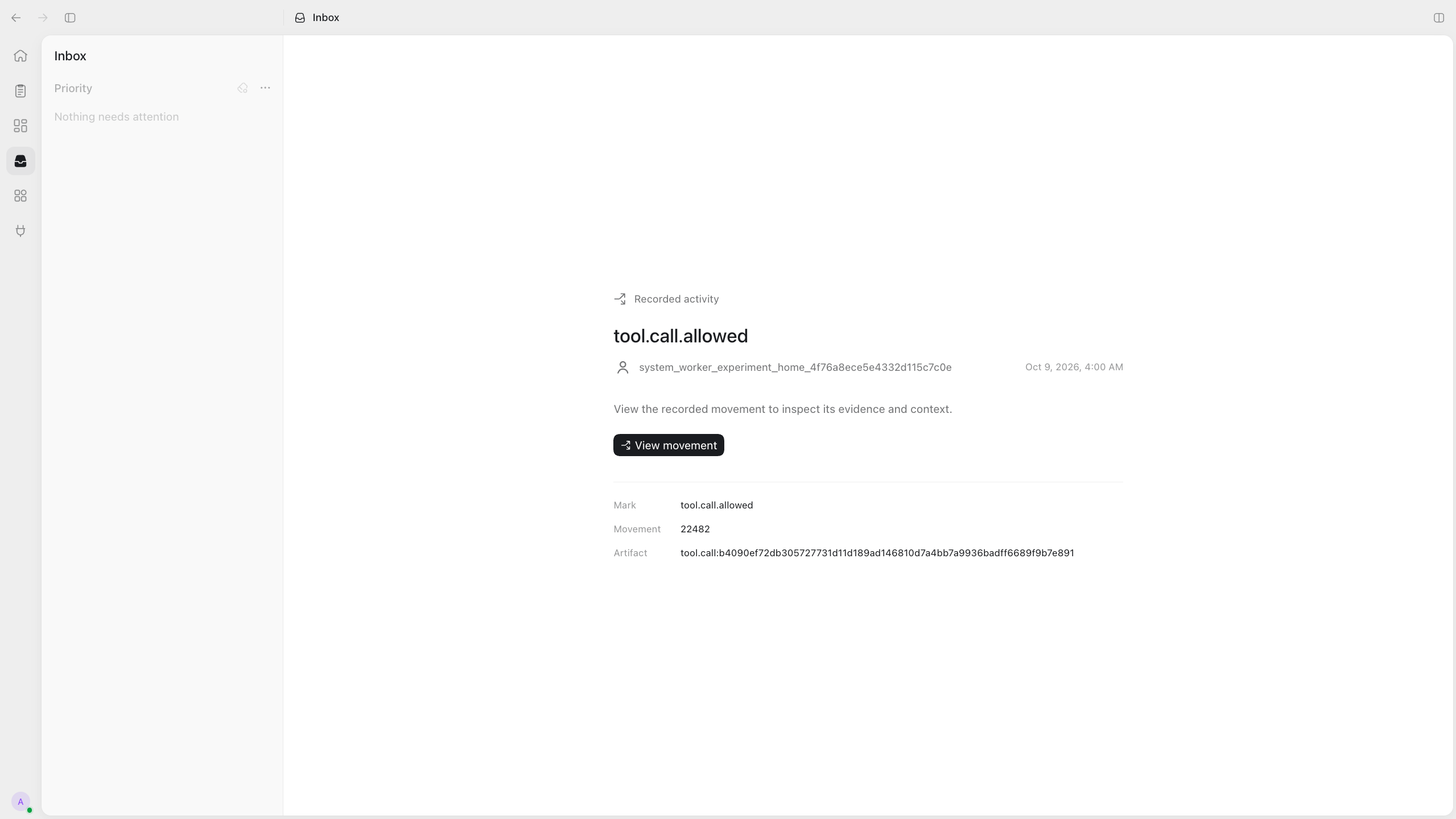
See the movement and metadata example.
Dashboard → Worker Environments lists the rooms where work touches the world: a browser session, a Git worktree, a terminal, a desktop. Tabs separate rooms opened for tasks, rooms opened for Home, and the system rooms Octopus opens for its own upkeep. Each row shows what the room is, which task uses it, whether it is open, and when it was last active; opening a row shows the room live, its changes, or its files.
Applications, Drivers, and Extensions
These are different catalogs, not three names for plugins. Applications and Drivers package capabilities expressed by the architecture; Extensions let you arrange and extend how the client presents your work.
| Catalog | What it adds | Example |
|---|---|---|
| Applications | Interface or context packages a run can use. The catalog groups AI Providers, Connectors, Plugins, and Context. | A model provider, the Slack connector, an MCP server plugin. |
| Drivers | Worker-environment kinds, their doors, and tools. They supply the room where effects happen. | A browser session or a Git worktree. |
| Settings → Extensions | Client widgets, tabs/panels, inputs, and guided repairs. Their declared sources and actions are reviewed during setup. | A Home widget, an additional workspace view, or Smart gestures. |
In architecture documents, driver also means the implementation behind any interface, including a provider. The Drivers screen specifically presents worker environments. Neither use means a macOS kernel extension. For concrete catalog examples, see Applications and Drivers.
Installation and access are separate:
- Install materializes the package and its required dependencies.
- Connect supplies the required account, key, or device. Where the application declares a connection check, the client verifies what you enter against the real service, walks you through browser sign-in or pairing, and shows the connected account. Gmail, GitHub and Google Drive work through the apps linked to your ChatGPT account, and Octopus keeps no GitHub or Google token: the card shows the account each one uses (the Gmail mailbox, the GitHub login, the Google Drive account), with the ChatGPT account beneath it. If an app is already linked there, Octopus still asks you to Connect once before tasks can use it. Manage in ChatGPT opens the page where you switch, add or unlink its accounts, and for GitHub the repositories its app reaches; Disconnect in Octopus does not unlink it from ChatGPT. Image Generation needs no key: it uses the ChatGPT account signed in on this Mac and shows that account with its plan, which must be a paid one. Unity MCP connects to the local server MCP for Unity starts from the Unity Editor and shows the Editor project it serves.
- Make available admits it within Home or the chosen Project’s ceiling. Installing an application lets the Home and task workers and the Computer Use Agent preset use it; there is no separate list to edit. An application outside an Agent’s ceiling appears disabled in the Agent dialog with the reason, and saving an Agent brings it up to its template’s current ceiling.
- Select/connect gives a task the relevant bindings. A default for new tasks is not evidence that an existing task already uses it.
In a task with Full access, connected MCP applications never ask before a tool runs. In Project access, a tool asks for your approval in the chat first unless its server declares it read-only, or neither destructive nor open-world — the rule Codex uses for app tools.
An installed package grants no authority by itself. Each card offers the next step — Install, Repair or Connect — or shows Connected with a menu to reconnect or disconnect; Reconnect required and Connection issue appear only when the check fails. After Install, Repair or Remove the card shows Finishing until the catalog reflects the result, so a second press cannot start the same change again. The detail page shows the connected account, where the application is available, and how many tasks use it. Removal can be blocked while live records depend on it.
Client Extensions
Open Settings → Extensions to browse and manage additions to the client:
- Widgets add focused views to Home, such as Live context, Task progress, or Memory with a selected knowledge folder such as an Obsidian vault.
- Tabs add workspace views, including Metrics and Codex Usage.
- Inputs add ways to control the client. Smart gestures connects a decision model through your own OpenRouter key so hand movement can be read as intent rather than as a fixed pose list.
- Repairs provide explicit maintenance actions, such as Codex sign-in check after an authentication failure.
Opening an extension shows its page: what it adds, its setup and who made it. Install opens one dialog with the same facts, or a setup dialog first when the extension needs a folder, a key or a device. When it finishes, the dialog offers to open what you installed: the new tab, Home for a widget, or its settings for an input. Adding a client view does not grant a run new tools or access to data.
Some extensions need a key. A key is a credential source: the manifest names
the one origin it may be sent to, setup stores it with owner-only file
permissions in the Home’s client/extensions/credentials, and the client page
and Home never read it back. Check asks that origin whether it still
accepts the key. An input’s model call is client presentation work, like
speech recognition; it is not a provider binding and gives no run access.
An extension’s source is client configuration, not an interface binding. For example, selecting an Obsidian vault for Memory gives that widget a folder to display; it does not create a runtime memory module or bind the vault to a task. Metrics similarly presents existing evidence rather than creating another event log.
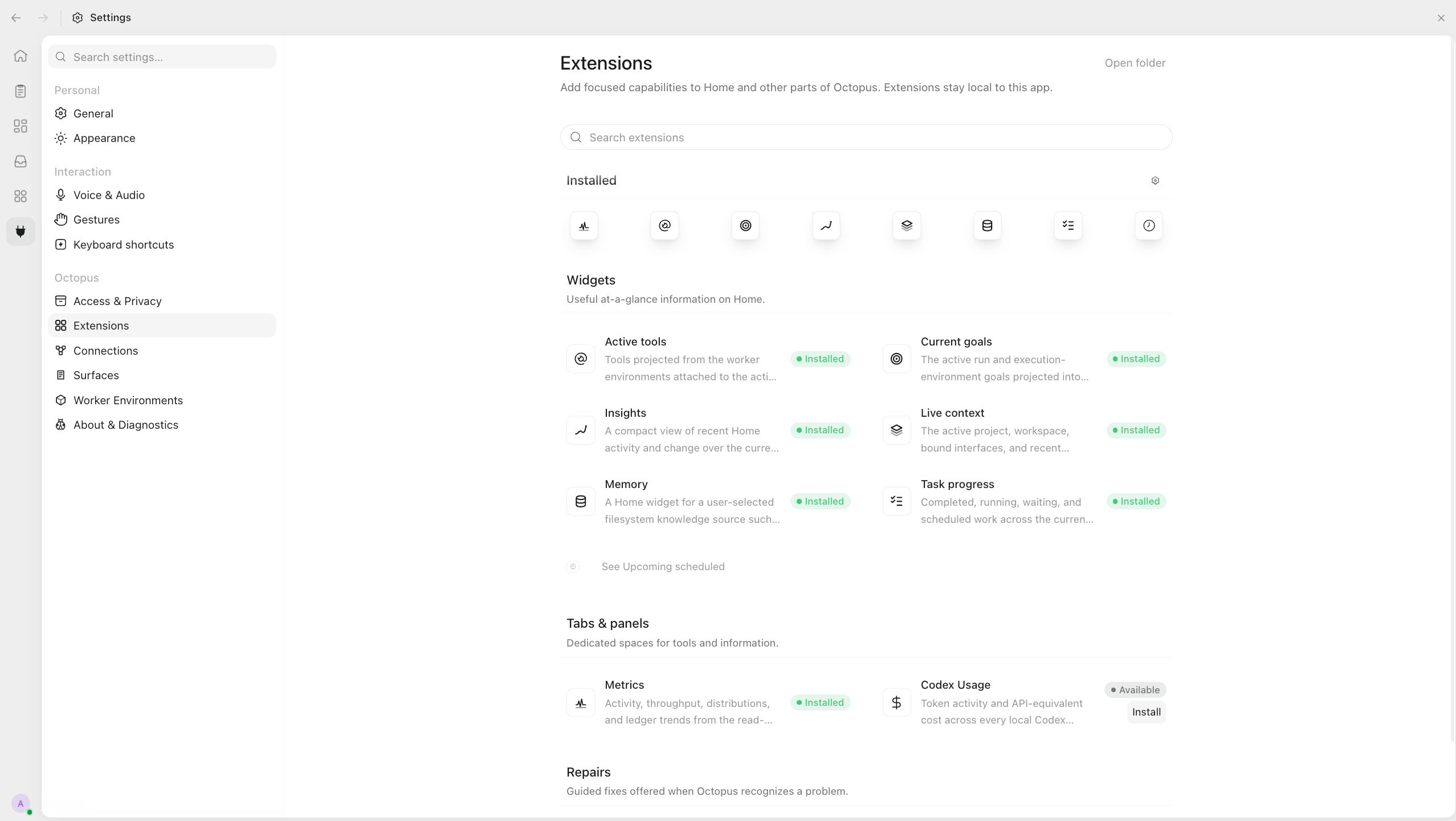
Custom Extensions are files too. Open folder opens the extension root,
<home>/client/extensions; packages live at packages/<id>/extension.json and
follow the manifest schema.
Custom views use the surface document contract
for native components or sandboxed HTML/CSS/JavaScript; no new kernel feature
is needed.
You can ask Home for one in plain words - “show me X on Home and keep it
updated”, “add a tab with Y”. Home first asks the running client what it can
host (inspect_client): the folder, the exact schemas this build accepts,
targets, components, data sources, and every Extension’s state. It then writes
the package with its ordinary file tools and, when the view needs data nothing
projects yet, the system side in the same task - for example a small feed
interface and the run that emits into it on a trigger. The client discovers the
new package, validates it, and asks you to review its exact revision wherever
you are; it does not silently run new code. After you install it, it goes live
without a restart. Refusals, setup gaps, and errors the view hits while
rendering go back to Home through the same inspection, so it can fix them; each
fix is a new revision you review again.
Showing, hiding or removing widgets you already have is simpler: Home lists them and changes any number of them in one request. The client applies the change at once and reports the actual state back when Home’s turn ends, and Home continues from it. Stop ends the whole request: nothing Home asked for in the stopped turn is applied afterwards, and no reply about it follows.
Extensions are additions you install and remove. They are not the only way to change the client: the client is ordinary code, and Home, which holds your machine’s rights in the default setup, can change any part of it. Ask for it in plain words; Home finds the client’s source, edits it, rebuilds it and asks the running client to relaunch. The system keeps running while the client restarts, even when it was started from the client’s own launch terminal, so Home’s work continues; you sign in again and the change is there. Quitting the client yourself still stops a system it launched.
Where packages come from
Today the app uses a local package library, not a hosted marketplace. The source and delivery path is:
repository registry/ + app/distribution/local-packages/
    → packaging: startup baseline + local package library inside Octopus.app
    → Install: selected package files and receipts in the chosen Home
    → project/task setup: explicit descriptor and binding changes
During source development, the library resolves to the checkout. A packaged app uses the copy bundled inside it. Clicking Install materializes those local files; it does not fetch a newer Driver from an Octopus server. Building the app can download dependencies, and an installed integration can contact its external service during use. Those are separate network operations.
Client Extensions have their own built-in catalog and a local package directory
in the selected Home’s client/extensions. This is separate from the runtime registry.
The current client has no hosted Extension marketplace or automatic app
updater. A new build supplies a new bundled library; local Home changes still
need to be reconciled through the package lifecycle.
To add a capability, start with Extending Octopus. To understand updates and local JSON changes, read Source and Home.
Experiments
Settings → Experiments lists small product ideas running in this client, each with its own switch and a count kept on this device:
- Gesture feedback briefly shows which command a swipe or fist ran.
- Shortcut coach shows a command’s keyboard shortcut after you have opened it from the command menu three times.
Experiments change presentation only. Both start on, in each profile separately, and nothing they count leaves the client.
Experimental interaction and Test
Settings → Gestures turns the camera into a second way to drive the client. It includes camera selection, command mappings, custom pose recording, and a live preview. The first time you turn it on, a short tour asks for the camera and shows pointing, pinching and swipes; Take the tour repeats it. While gesture control is on, a hand button sits in the navigation rail. Its dot shows whether the camera is live, and its menu shows the preview and turns gesture control off. Turn gesture control on or off is also in the command menu and can be given a keyboard shortcut. Camera access is required. Hand tracking runs on the GPU in a background worker, off the thread that draws the client; if the GPU cannot start it, Settings shows that error instead of tracking on the CPU. Treat these controls as experimental, particularly across different cameras and lighting.
Every gesture in Settings has a small looping illustration of the hand, a plain description, and its current command or effect.
A hand counts a quarter second after it comes into view, and a pinch has to be held for a moment, so a passing hand or a twitch does nothing.
There is no hand cursor. Gestures move one visible focus ring between concrete targets — buttons, fields, tabs, list rows, and Home widgets:
| Gesture | Effect |
|---|---|
| Point (index finger out) | Where the hand is picks the target. An inner region of the camera view spans the whole window — about 62% of its width and 64% of its height at Balanced response, smaller at Responsive and larger at Deliberate — so each window edge is reached with the hand still well inside the frame. Each hand’s region is shifted a little toward its own side, so a right hand reaches the left sidebar without crossing the body. Focus goes to the target nearest that point. Holding the hand past an edge scrolls the list under focus. |
| Pinch (thumb to index, then release) | The ring fills while pinched; releasing selects the focused target. On a Home widget it opens the widget’s own controls, and on a field it places the text cursor there. |
| Pinch and move | Carries the focused Home widget; releasing drops it. |
| Throw | Releasing a carried widget mid-motion hides it. |
| Two-hand pinch | Spreading or closing both pinched hands resizes the focused widget; moving them together carries it. |
| Swipe left / right (quick flick, open hand or two fingers) | Runs a mapped client command, Back and Forward by default. |
| Fist hold | Runs a mapped client command, none by default. |
Both hands are tracked at once, and each keeps its side as it moves or briefly leaves the frame. The pointing position is smoothed by an adaptive filter that stays still at rest and keeps up with a moving hand, and focus moves only to a target that is clearly closer and stays closer for a moment, so tremor near a border does not flip it. A pose is read by a vote over the last few frames, so a frame or two misread mid-gesture does not interrupt pointing. Pointing starts a moment after the pose settles, and a hand that blurs or leaves keeps the last target instead of teleporting focus. Focus stays inside an open dialog or menu. A pinch is judged by the 3D distance between the thumb and index fingertips relative to the size of the hand, with separate thresholds for closing and opening, so a finger pointed toward the camera, whose tip only appears to touch the thumb, is not a pinch. It does not depend on what the other fingers do. Releasing selects the target that had focus just before the fingers started to close, so the motion of pinching does not move the selection, and a new pinch is ignored for a quarter of a second after a release, so one wobbly pinch never selects several times. A small wobble while pinching still selects, and a pinch on a control that cannot move always selects when released. A pinch survives a few blurred or dropped frames, and a hand that leaves the camera mid-pinch cancels instead of selecting. A swipe needs an open hand or two fingers and is judged by speed and straightness, so a frame lost to motion blur still counts, the hand returning is not read as a swipe the other way, and a hand turning through an unclear pose never swipes. Spatial widget control turns carrying, resizing, and throwing on or off; focus and selection work without it.
Record gesture trace saves a few seconds of raw hand landmarks for both
hands, with every recognizer decision and no video, to client/gesture-traces/
in the Home, and Reveal in Finder shows the file. Recording starts after a
short countdown and continues if you leave Settings, so the moment that
misbehaves can be captured where it happens. node app/scripts/test-air-hand-control.cjs --trace <file> replays a trace against
the current recognizer and prints the recorded and replayed decisions side by
side.
Focus and selection also work inside Settings, so the preview can be tried in place. Mapped commands wait until Settings closes. The preview shows each tracked hand with its side and pose, the last recognized gesture and what it did, and the focused target. It also measures how many frames per second the camera really delivers and warns when that is too few; a dim room or a phone used as a camera can drop to a handful.
These gestures are client input, like keyboard shortcuts. The camera recognizer emits local events that move client focus, run a client command, or arrange a Home widget. Moving focus, selecting a control, or carrying a widget does not send an artifact through the runtime. If a selected control or a command submits a message or starts a call, that action enters the ordinary chat or voice interface path.
The repository also carries AirHand,
a macOS prototype for moving the pointer, clicking, and scrolling from a
camera. Desktop input requires Accessibility permission as well as Camera
permission. Its experimental world_hand_gesture_control bridge can report
gesture/tracking events to a bound run and accept commands to start recognition,
read status, or calibrate AirHand. The current client does not launch this
native app or use its bridge, and the shipped setup supplies no gesture-to-agent
run binding. Using that integration requires the separate app and an explicitly
authored binding. Native pointer control stays in AirHand’s own process.
Test is a separate client access profile, not another name for Tasks. Its Test Lab settings expose fixtures, synthetic voice activity, and surface previews. It has no live runtime or endpoint authority. A successful Test preview does not prove a real model call, tool execution, or device setup.
Test shows the same screens as the live client. Its Applications, Drivers, Application Packs, and provider models come from the package library bundled with the app, with a fixed set marked installed; it never reads the Home’s registry. Its runtime status is the isolated lab’s own, never the probe of the Home’s runtime. Tasks, transcripts, triggers, and worker environments are fixtures in the current projection shapes. Built-in Home widgets that install by default are shown, and the Extensions catalog is read-only. Sending a message, steering, pinning, and editing a trigger are simulated in memory.
Registry and Files open a Test Home with two folders: registry/ is the
bundled package library, read-only, plus a descriptor for each interface the
lab projects; workspace/ is the demo project the simulated task edits, and
saving there changes only the lab’s memory. Opening an artifact shows its
fixture payload as JSON. Attachment bytes and voice recordings are not kept in
Test, and nothing in Test can be revealed or opened on the Mac.
For custom UI, client surface documents describe small widgets and workspace views as validated JSON. Test can watch local documents; Administrator reads stable documents from runtime projection evidence. A client widget cannot grant itself tool or runtime access.
Cost and local data
Octopus is MIT-licensed and has no paid Octopus tier in this preview. You supply the model/provider access. Account limits, API charges, voice services, remote compute, and other connected services remain those providers’ costs. There is no single per-task price: it depends on the selected model and work performed.
The Home screen is a conversation. The Home directory, normally
~/.octopus, is the private state of an installation: its active registry,
runs, ledger, and interface data. The client keeps its preferences and
Extensions in that Home’s client/ directory. The launch selection and
provider authentication live elsewhere, such as Codex credentials under
~/.codex, so changing OCTOPUS_HOME alone does not isolate provider accounts.
Task history reads use bounded concurrency. Indexed movements, file verification and sealed response streams are processed in batches that yield to the client’s event loop. Cold history reconstruction retains the same ordering, identity and integrity checks while allowing the client to handle input between batches.
Use Help → Report a Problem… to describe a failure, preview diagnostics, save or copy a report, and open a GitHub issue draft. The report has its own window, so it remains accessible during setup or a failure of the main renderer. Nothing is submitted automatically. The default report includes build facts, setup observations, client events and bounded runtime evidence: selected ledger movements, matching calls and results, context generations, pending handoffs and failed interfaces. Private identities are replaced consistently within the report. Error text and log excerpts are a separate opt-in because they may contain private data. A locked client or Test profile exposes application facts only. Technical projections exclude conversation text, tool arguments and results, project files, credentials and environment variables. Missing, changed, corrupt and omitted sources are reported. Choose saved Home… reads a preserved Home selected in the native folder picker without switching to it, launching its runtime or changing its files. Its folder name is shown in the window and excluded from the exported report. Use current Home returns to the active Home’s diagnostics. Build details for a saved Home identify the app collecting the report, not the old installation.
Settings → About & Diagnostics opens the same report window and also provides Doctor and the local logs folder. See Troubleshooting before sharing a report or changing an installation that fails. Read the security model when granting new capabilities.